Workspaces
A workspace is Bromure Agentic Coding's unit of isolation: one Ubuntu VM with its own system disk, its own persistent home folder, its own coding agents and credentials, and its own security policies. Everything the app does happens inside a workspace — a scratch workspace can run wide open on a throwaway API key while a production-facing one records every AI exchange and prompts before every destructive write, and the two never share a byte.
Almost every setting in the app is per-workspace. The exceptions are the app-wide Automation server, the downloaded browser image, and installed local models — all shared across workspaces. In the code and in exported JSON a workspace is called a profile; the CLI accepts a workspace's name, its id, or a short-id prefix interchangeably. This chapter covers the window you manage workspaces from, and the lifecycle actions — create, edit, duplicate, reset, delete — you drive from it. The 15-pane settings editor each workspace carries is documented in Settings Reference; what happens once a workspace is running is covered in Sessions; and the isolation model itself is in Concepts & Architecture.
The workspace browser
The app's main window is the workspace browser: a left sidebar that lists your workspaces, the terminal Grid, and your scheduled automations, and a detail pane that shows the selected workspace's live vitals and configuration.
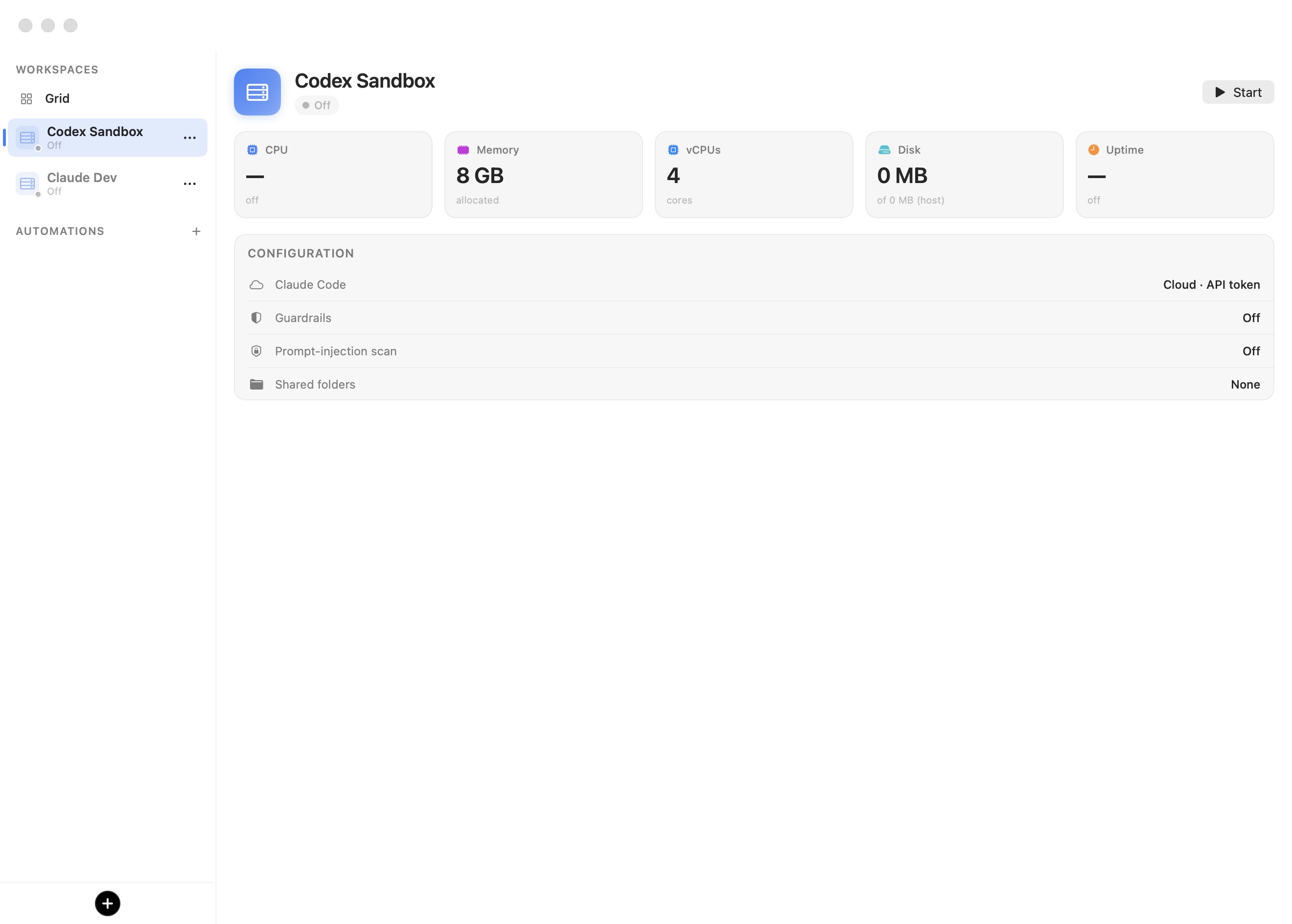
The sidebar has three sections, top to bottom:
- WORKSPACES — a pinned Grid node followed by one row per workspace.
- AUTOMATIONS — your scheduled, unattended agent runs, with a + button to add one.
- A black + button at the very bottom that creates a new workspace.
Selecting a workspace row fills the detail pane. If the workspace is Off or Suspended, the pane shows its dashboard and a Start or Resume button; once it is running, the stage instead shows the live session (its terminal tabs, browser pane, and dashboard), documented in Sessions.
The sidebar is resizable from 100 to 600 points (default 220). Drag the divider below roughly 100 points, or press ⌃⌘S, to collapse it into a narrow icon rail; press again to restore it. Workspaces are listed most-recently-used first, falling back to creation date for ones you have never opened.
The sidebar
Workspace rows
Each workspace row carries, left to right:
- A tinted tile — a server-rack glyph tinted with the workspace's color, with a small run-state dot in its corner.
- The workspace name, in bold when the row is selected.
- A state label beneath the name — Off, Starting…, or Suspended. A running workspace shows no label; instead its terminal tabs plus an always-on Docker node appear nested under the row (the node carries a running-container count badge that reads 0 when none are up).
- A red warning triangle after the name when the workspace has been flagged compromised by the credential-leak detector and refuses to boot until wiped (see Concepts & Architecture).
Hovering a running workspace reveals three quick-action buttons on the row: Pop out to its own window, Close this VM, and New tab (⌘T). The ⋯ button at the end of every row opens that workspace's context menu — the hub for every lifecycle and management action described in the rest of this chapter.
Run states
A workspace VM is always in one of a few states, surfaced both by the row's status dot and by the pill next to the name in the detail-pane header:
| State | Row dot | Meaning |
|---|---|---|
| Off | Gray | Not running. No RAM, no CPU; only the disk on-disk. |
| Starting… (Booting) | Orange, pulsing | The VM is powering on. |
| Running | Green | Booted and active; the session is live. |
| Suspended | Yellow | RAM saved to disk; resumes near-instantly where it left off. |
The lifecycle behind these states — how suspend differs from shutdown, and what a "close action" does — is described in Concepts & Architecture.
The detail pane
When a workspace is not running, its detail pane is a dashboard: a row of status cards across the top, a CONFIGURATION summary below, and a Start / Resume button in the top-right corner.
Status cards
Five cards report the workspace's resource picture. Their values differ depending on whether the VM is running:
| Card | While Off / Suspended | While Running |
|---|---|---|
| CPU | — (caption off) | Live CPU load, with a sparkline history. |
| Memory | Allocated RAM, e.g. 8 GB (caption allocated) | Memory in use inside the guest. |
| vCPUs | Core count, e.g. 4 (caption cores) | Same count with the guest's current load average. |
| Disk | 0 MB (caption of 0 MB (host)) | Disk used by the workspace, over host capacity, read live from the guest. |
| Uptime | — (caption off) | Time since boot, e.g. 3h 12m. |
The allocated memory and vCPU figures come from the workspace's Resources settings. The running dashboard, including live port listings and internet exposure, is covered in Sessions.
The CONFIGURATION summary
The CONFIGURATION card is a quick, read-only recap of the workspace's most consequential settings — so you can confirm what a workspace will do before you start it:
| Row | Shows |
|---|---|
| <Agent name> (one row per enabled agent) | Where it runs and how it authenticates — Cloud · API token, Cloud · Subscription, On-device · <model>, and so on. |
| Guardrails | Off, the single mode when uniform, or Custom (N domains) when mixed. |
| Prompt-injection scan | On or Off. |
| Shared folders | The mounted folder names, or None. |
Each of these maps to a pane in the settings editor: Agents, Guardrails, Prompt Injection, and Folders.
Note: A freshly decoded workspace that predates a setting shows that setting's legacy default here — for example the Codex Sandbox in the screenshot above reports Guardrails Off and Prompt-injection scan Off, because it was created before those defaults existed. Newly created workspaces inherit the current factory template instead (Guardrails set to Prompt before write, tracing to AI request details). See the preferences template.
Start and Resume
The button in the top-right corner reads Start when the workspace is Off and Resume when it is Suspended. Clicking it boots the VM (or wakes it from its saved RAM state) and switches the stage to the live session. The same actions are available from the row's ⋯ menu.
Creating a workspace
Click the black + button at the bottom of the sidebar (its tooltip reads New workspace). This opens the settings editor in a window titled New workspace, pre-filled from your preferences template with a placeholder name — Default workspace, auto-numbered Default workspace 2, 3, and so on if the name is taken.
- Give the workspace a Name in the General pane. This is the only field required to save.
- Adjust any other pane — agent, credentials, guardrails, appearance, resources — as needed. Every pane is documented in Settings Reference.
- Click Create. Press Esc (or Cancel) to discard the draft.
A new workspace is forked from the template, so whatever you set in Bromure → Preferences… becomes its starting point. The factory template enables Claude Code as the primary agent in Subscription auth mode, sets every guardrail to Prompt before write, and switches on an ed25519 SSH keypair (the Generate an ed25519 keypair toggle under Credentials → SSH Keys is pre-checked unless the template already carries a key).
Tip: Most editor changes apply only when you click Create or Save. A few actions take effect immediately regardless — local-model and prompt-injection-model downloads, MCP OAuth authorization, subscription registration, and SSH-key import — because they touch shared or host-side state rather than the workspace document.
Editing and renaming a workspace
Open a workspace's ⋯ menu and choose Edit… to reopen the same editor, this time titled Edit workspace and bound to the existing workspace. Change any value and click Save.
There is no separate "rename" command — a workspace is renamed by editing its Name field in the General pane. Only one editor window exists at a time; opening the editor for a different workspace tears the window down and rebuilds it.
Color and the workspace tile
Every workspace has an accent Color, chosen in the General pane from eight presets:
| Blue (default) | Red | Green | Orange |
| Purple | Pink | Teal | Gray |
The color tints the workspace's sidebar tile, its selection highlight, and its tab accents — it is the fastest way to tell workspaces apart at a glance. Color is the only per-workspace visual identity: there is no icon picker. The tile is always a server-rack glyph in your chosen color, overlaid with the run-state dot described under Run states.
Duplicating a workspace
Choose Duplicate from a workspace's ⋯ menu to deep-copy it. The copy appears immediately in the sidebar named after the original with copy appended — duplicating Codex Sandbox produces Codex Sandbox copy — and there is no confirmation dialog.
A duplicate is a genuine clone. It copies all settings and credentials, the system disk, the home folder, and the host-side SSH and agent material, using APFS copy-on-write cloning where possible (instant, and consuming no extra disk space until the two workspaces diverge). Deliberately not copied are three things tied to the original's identity:
- the saved RAM snapshot, so the copy cold-boots fresh rather than resuming the original's live state;
- the tab layout;
- the persistent MAC address, so the copy joins the network as a distinct machine.
Because its creation date is re-stamped, the copy sorts to the top of the sidebar as the newest workspace.
Starting, suspending, and shutting down
A workspace row's ⋯ menu adapts to its current state. When the VM is off or suspended it offers the single start entry; when it is running it offers the three ways to stop or restart it:
| State | Menu entries |
|---|---|
| Off | Start |
| Suspended | Resume |
| Running or Starting… | Shutdown · Suspend · Reboot — plus Add Worktrees to Grid while running |
Suspend saves the VM's RAM to disk and stops it, so a later Resume picks up exactly where you left off; Shutdown performs a clean power-off, and the next launch is a full cold boot. Reboot restarts a running workspace in place. The trade-offs between these, and the per-workspace When closing the window default that decides which one a window-close triggers, are covered in Concepts & Architecture and General settings.
Resetting the system disk
Reset disk (in the ⋯ menu, or Reset to base… in the Resources pane) re-clones the workspace's system disk from the current base image. It discards everything you changed in the OS layer — packages installed with apt, edits to /etc, /var, /usr, /opt, and system-wide config — while leaving your home folder untouched: projects, dotfiles, .ssh keys, npm-global, .cargo, and shell history all survive. The confirmation dialog is titled Reset "<name>" system disk to base? and its buttons are Reset to base and Cancel.
Resetting the disk also drops the saved RAM state and tab layout, so the next boot is coherent. The action is refused with Close "<name>" first. if the workspace's session window is open — close it before resetting.
Note: To wipe the home folder instead — projects, dotfiles, and the generated SSH keypair — use Erase home… in the Resources pane. Home rollback checkpoints and the Restore home… control that reverts to a per-boot snapshot are described in Sessions.
Deleting a workspace
Delete workspace (the red, destructive entry at the bottom of the ⋯ menu) removes a workspace permanently. A confirmation alert titled Delete workspace "<name>"? explains the blast radius:
Removes its disk, settings, and SSH key. The mounted host folder is untouched.
Confirming deletes the workspace's entire directory under ~/Library/Application Support/BromureAC/profiles/ — its profile.json, its encrypted secrets.enc, the system disk, the home image, all checkpoints, and the host-side SSH key material — and releases its reserved MAC address. What deletion does not touch are the host folders you shared into the workspace: those live on your Mac, are mounted read-write, and are left exactly as they were. Their contents inside the VM go away with the VM; the originals on your Mac do not.
Warning: Deletion is not recoverable from within the app. There is no trash and no undo — the disk, home, and secrets are gone. Anything you want to keep should be on a shared host folder or committed and pushed before you delete.
The Grid
The pinned Grid node at the top of the WORKSPACES section is a stage that tiles several running terminals side by side, so you can watch multiple agents at once. There are two ways to populate it: choose Add Worktrees to Grid from a running workspace's ⋯ menu to drop all of that workspace's worktree tabs onto the Grid at once, or drag individual terminal tabs onto the Grid node. Each cell's context menu offers Remove from Grid. The Grid layout and how it interacts with worktrees are covered in Sessions.
Automations at a glance
The AUTOMATIONS section lists your scheduled, unattended agent runs. Its + button (tooltip New automation) opens the automation editor. Each row shows the automation's name, a colored dot for the workspace it belongs to, a one-line summary of its trigger (for example Weekdays 9:00 or PR · owner/repo), and a glyph for its last run. Right-clicking a row offers Run Now, Pause or Resume, and Delete….
An automation belongs to one workspace; when it fires it creates a fresh git worktree in that workspace's repository and launches the chosen agent there with your prompt, so runs appear as ordinary worktree tabs. Triggers range from a wall-clock schedule to GitHub pull-request, issue, and commit polling, Linear issue polling, and chaining after another automation. The full feature — triggers, filters, the mandatory prompt-injection screen on event text, run history, and the CLI and control-socket surface that mirror it — is documented in Automation & the CLI.
Where a workspace is stored
Each workspace is a directory under ~/Library/Application Support/BromureAC/profiles/<uuid>/. The pieces you may care about:
| Path | Contents |
|---|---|
profile.json | All non-secret settings. |
secrets.enc | Every secret, split out on save and AES-GCM-encrypted with a Keychain-held key (chmod 600). |
disk.img | The workspace's read-write copy of the base OS. |
home.img | The persistent /home/ubuntu (ext4 home model). |
checkpoints/ | Per-boot rollback snapshots of the disk and home. |
vm.state | The saved RAM snapshot for a suspended workspace. |
agent/, ssh/ | Host-side SSH key material — the private key never enters the VM. |
The preferences template lives outside profiles/ (as profile-template.json plus an encrypted companion), which is why it never shows up as a workspace in the sidebar. Persistent workspace-to-MAC bindings are recorded separately in profile-macs.json. Secrets are never written into profile.json and never copied into the VM — the guest holds only fakes, which the host proxy swaps for real values on the wire (see Credentials).
Tip:
disk.img,home.img, and the snapshots undercheckpoints/are Linux ext4 images. You can browse, extract from, and even repair them directly on your Mac — no VM boot required — with the ext4 file browser described in Advanced.
Command-line equivalents
Every action in this chapter has a headless counterpart. With the app (or its background agent) running, bromure-cli vm ls lists workspaces with live state, and workspaces create, workspaces edit, workspaces describe, and workspaces rm cover the create/edit/inspect/delete flows — vm is an accepted alias for the workspaces group. These, the loopback automation API, and the SSH remote menu that mirrors the whole editor are documented in Automation & the CLI.