Automation
The Automation pane is not about any one machine. It configures Bromure Agentic Coding's HTTP automation API — a control interface on the loopback network that external tools, scripts and AI agents use to manage machines and sessions — and it applies to the whole app. It is the only pane in the App group, and it appears only in Preferences… (⌘,).
Note: This pane is not about the automations you schedule for agents to run — those live in the Automations board. See Automations.
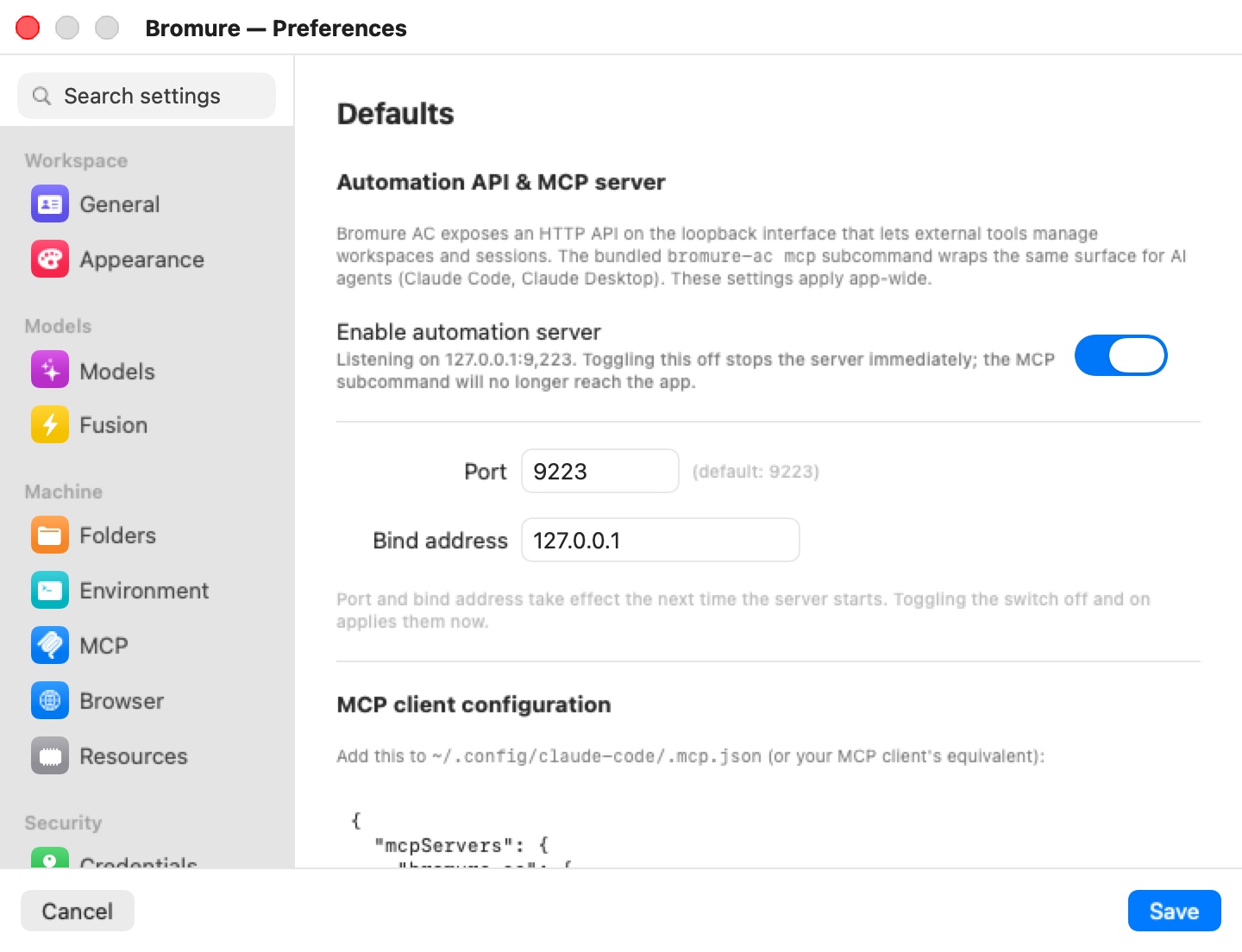
Unlike the other panes, this one saves as you change it: there is no Save step, and Cancel doesn't undo it. It always acts on the Mac in front of you, so it appears only in this Mac's own Preferences: not when Preferences' Settings for: picker points at a remote Mac, nor when you edit a remote machine from a mirror window. It is not available in the iPhone, iPad or Vision Pro client.
Automation API & MCP server
The pane's summary: "Bromure AC exposes an HTTP API on the loopback interface that lets external tools manage workspaces and sessions. The bundled bromure-ac mcp subcommand wraps the same surface for AI agents (Claude Code, Claude Desktop). These settings apply app-wide."
Two ways in share one set of routes:
- The control socket — always on, at
~/Library/Application Support/BromureAC/control.sock, readable only by you. Thebromure-clicommand-line tool uses it, whether or not this pane's server is on. - The automation API — the same routes over TCP, off by default, turned on here. External HTTP clients and the
bromure-ac mcpserver use it. Turning it off doesn't affect the command-line tool.
Routes, the CLI and the MCP tools are documented in CLI, API & MCP.
Enable automation server
Turns the TCP listener on and off, immediately. Its caption shows the state:
- On: "Listening on 127.0.0.1:9223. Toggling this off stops the server immediately; the MCP subcommand will no longer reach the app."
- Off: "Off — the HTTP API and the MCP subcommand are unavailable."
Off by default. While it's off, an MCP client configured with bromure-ac mcp has nothing to connect to and lists no tools.
Warning: The automation API has no authentication. On the loopback interface, any process on your Mac can list machines and sessions and open or close sessions; routes that change machines or run commands also require the app to have been launched with
BROMURE_DEBUG_CLAUDE. Don't expose the listener beyond loopback — see Bind address.
Port and bind address
- Port — the TCP port, 1–65535, "(default: 9223)" — one above the Bromure web browser's 9222, so both apps can run side by side.
- Bind address — the interface to listen on, default
127.0.0.1. Anything else shows an orange warning: "Non-loopback bind exposes the API to the network. The MCP server has no auth."
"Port and bind address take effect the next time the server starts. Toggling the switch off and on applies them now."
MCP client configuration
The bottom of the pane has a snippet to paste into an MCP client — "Add this to ~/.config/claude-code/.mcp.json (or your MCP client's equivalent)":
{
  "mcpServers": {
    "bromure-ac": {
      "command": "/Applications/Bromure Agentic Coding.app/Contents/MacOS/bromure-ac",
      "args": ["mcp"]
    }
  }
}
It points straight at the app's executable inside the bundle. If you installed the command-line tool (Install Command-Line Tool… in the app menu), /usr/local/bin/bromure-cli is a link to the same executable. Turn on the automation server first: the MCP server's tools call the HTTP API.
Where the settings live
The three settings are app preferences in the io.bromure.agentic-coding domain, not part of any machine or template, so they can also be set from the command line:
| Setting | Preferences key | Type | Default |
|---|---|---|---|
| Enable automation server | automation.enabled | Boolean | false |
| Port | automation.port | Integer (1–65535) | 9223 |
| Bind address | automation.bindAddress | String | 127.0.0.1 |
For example, defaults write io.bromure.agentic-coding automation.enabled -bool true turns the server on at the next launch. See CLI, API & MCP for scripting the app while it runs.
Related chapters
- CLI, API & MCP — the routes, the CLI, and the MCP servers.
- MCP — MCP servers for the agents inside a machine.
- Settings Reference — all panes at a glance.