Browser
Every machine (a workspace, in the settings editor) comes with an embedded Chromium browser that its agents can drive — navigate, click, type, take screenshots, read the console and network log — through the built-in bromure-browser MCP server. The browser runs in its own disposable VM, separate from the machine's Linux VM, so a page the agent opens can't touch the agent's environment. The Browser pane sets whether the browser remembers sign-ins, what it may access on your Mac, and manages the shared browser image.
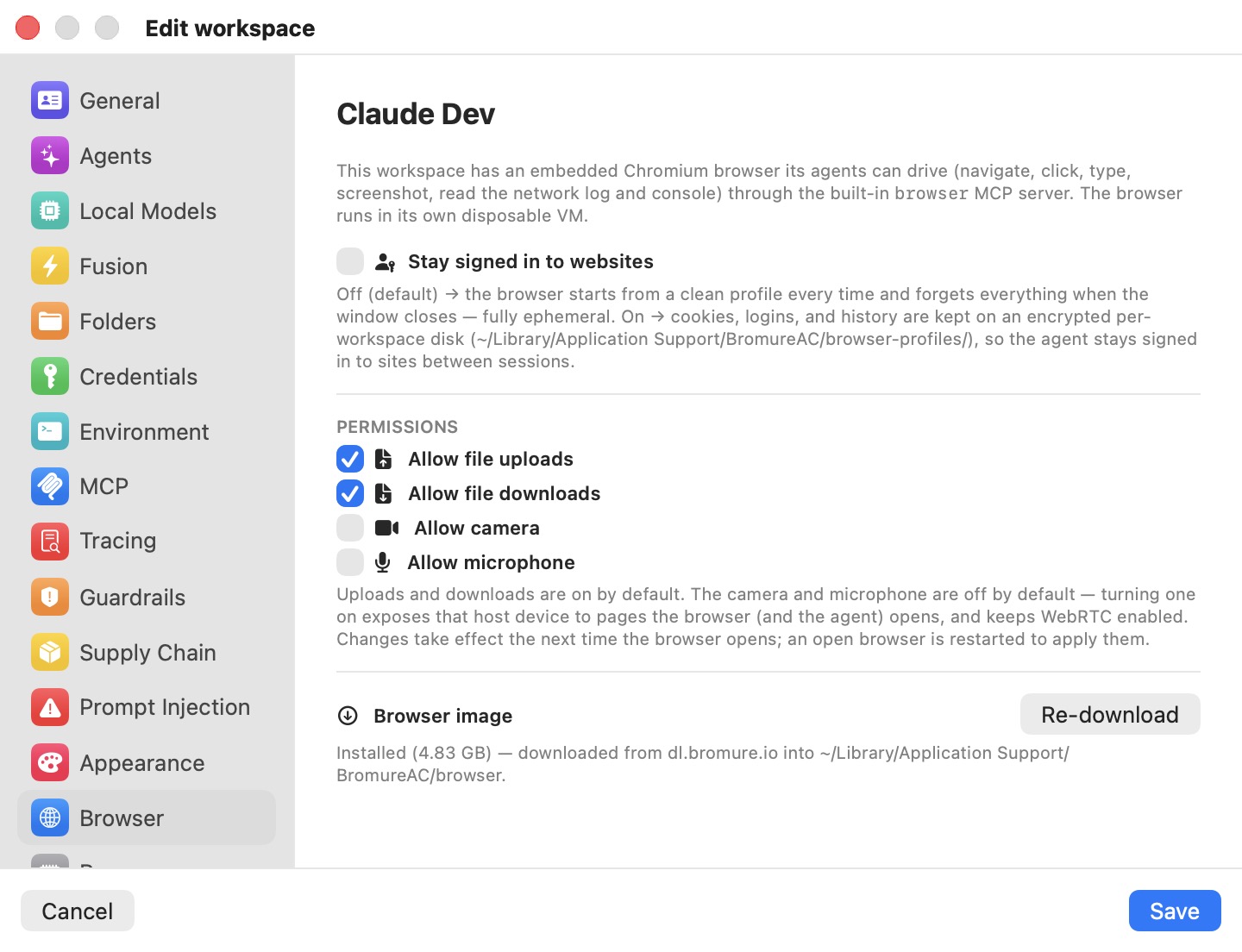
The pane sets policy only. You use the browser from the browser pane of the main window (⌃⌘B), and agents use it through their MCP tools — see The Embedded Browser.
Stay signed in to websites
- Off (default) — the browser starts from a clean profile every time and forgets everything when it closes. No cookies, logins or history survive.
- On — cookies, logins and history are kept on an encrypted disk belonging to this machine, under
~/Library/Application Support/BromureAC/browser-profiles/, so the agent stays signed in to sites between sessions. The disk is never shared with another machine.
Turning it off doesn't delete the saved disk: it is ignored while the setting is off and used again if you turn it back on.
Note: A signed-in browser the agent can drive is a standing credential the agent can use on any page. Leave this off unless a workflow needs a persistent login.
Permissions
| Permission | Default | Effect |
|---|---|---|
| Allow file uploads | On | Pages can receive files you or the agent upload. |
| Allow file downloads | On | Pages can save files. |
| Allow camera | Off | Exposes your Mac's camera to pages the browser opens, and keeps WebRTC enabled. |
| Allow microphone | Off | Exposes your Mac's microphone the same way. |
As the pane says, turning the camera or microphone on exposes that device "to pages the browser (and the agent) opens".
When changes apply
Permissions and Stay signed in to websites take effect when the browser next starts. If this machine's browser is open when you save, the app asks first:
Restart the browser for “name”? Changing the browser's permissions (uploads, downloads, camera, microphone) or “Stay signed in to websites” takes effect by restarting this workspace's browser — its open tabs will close.
Restart & Save applies the change and restarts the browser; Cancel returns to the editor without saving.
Browser image
The browser VM boots from a shared browser image, downloaded once and used by every machine — the same image the Bromure web browser uses. The Browser image section is therefore app-wide:
| State | Caption | Action |
|---|---|---|
| Installed by the Bromure web app | "Installed by Bromure Web (size) — shared with Agentic Coding, managed by the Bromure app." | None — the Bromure app keeps it up to date. |
| Downloaded by Agentic Coding | "Installed (size) — downloaded from dl.bromure.io into ~/Library/Application Support/BromureAC/browser." | Re-download |
| Not installed | "Not installed. Downloaded automatically the first time a workspace opens the browser, or download it now." | Download Now |
Re-download asks Re-download the browser image? — "Downloads a fresh copy (a few GB) and replaces the current image. Open browser sessions keep running and pick up the new image next time they start." While a download runs, the section shows its progress; a failure appears in red.
You don't have to install the image here. The first time any machine opens its browser, the browser pane asks Install the browser? with Download & Install and Not Now; nothing is downloaded until you accept.
The browser-image section is not shown in the iPhone, iPad or Vision Pro client — the image lives on the Mac that runs the machines.
Settings reference
| Setting | Type | Default | Scope |
|---|---|---|---|
| Stay signed in to websites | Toggle | Off | This machine |
| Allow file uploads | Checkbox | On | This machine |
| Allow file downloads | Checkbox | On | This machine |
| Allow camera | Checkbox | Off | This machine |
| Allow microphone | Checkbox | Off | This machine |
| Browser image | Status, Download Now / Re-download | Not installed | The whole Mac (shared with the Bromure web app) |
Related chapters
- The Embedded Browser — using the browser pane, and how agents drive it.
- MCP — the built-in
bromure-browserserver. - Settings Reference — all panes at a glance.