Folders
The Folders pane lists the folders on your Mac that are shared into this machine's VM (a machine is a workspace, in the settings editor). A shared folder is where the agent reads the code it works on and writes its changes. Everything else the VM touches — its home, its system disk — is isolated; a shared folder is not. It is a live, read-write window into your Mac.
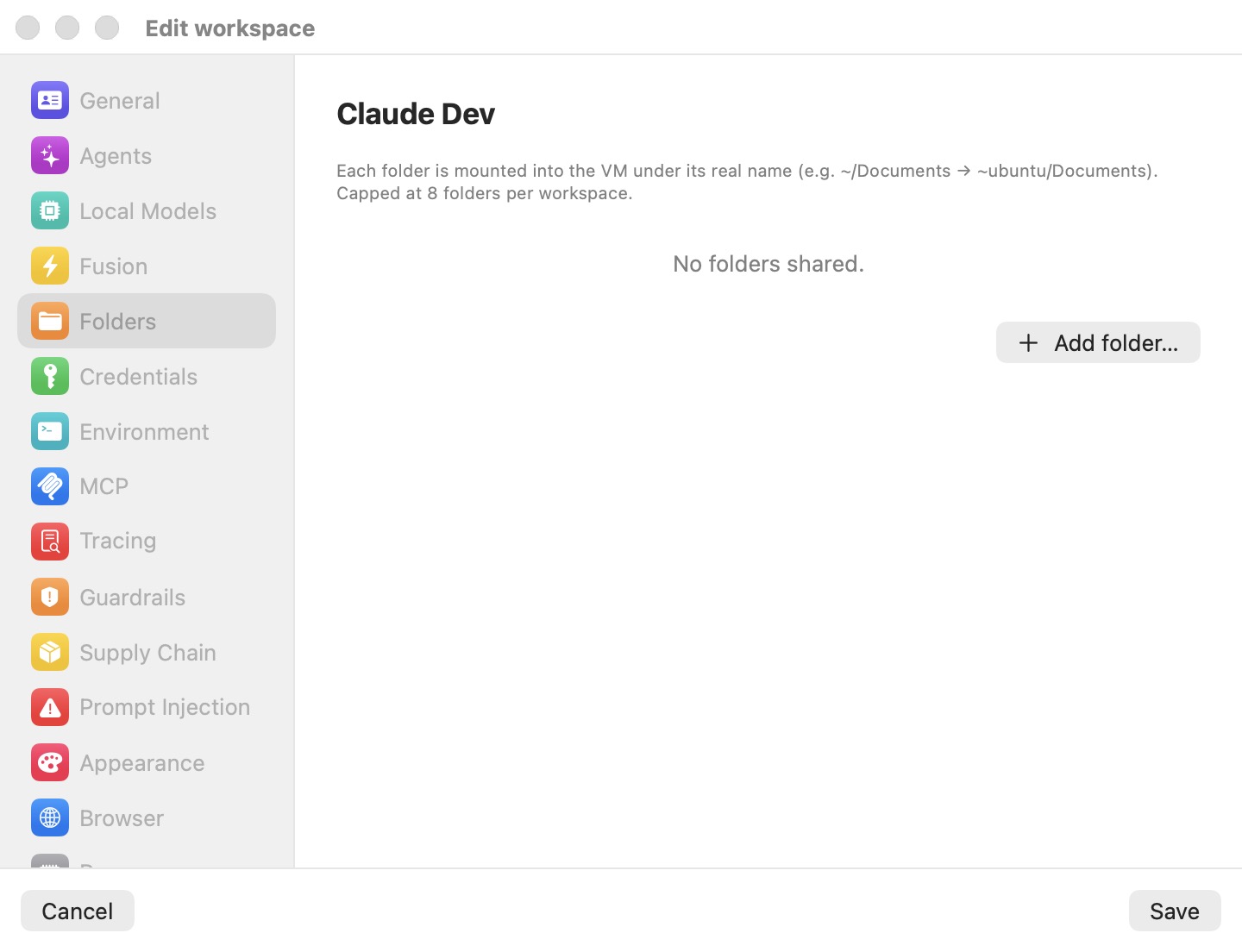
The pane's caption: "Add your personal projects and folders to mount in this workspace. Each one keeps its name inside, and you can add up to 8." With none configured it reads No folders shared.
How folders are shared
Each folder is mounted at /home/ubuntu/<name>, where <name> is the folder's own name: ~/Documents appears as ~/Documents inside the VM, and ~/code/bromure as /home/ubuntu/bromure. Only the last path component is used, so two folders with the same name from different places would collide — rename one if you need both.
The share is read-write. The agent can create, change, and delete files in it, and those changes are immediate and permanent on your Mac. That is what makes the machine useful: the agent edits your working copy in place, and git, your editor and your other tools see the edits as they happen.
Shares are attached when the VM boots. Adding or removing a folder on a running machine asks to restart it (Restart “name” to apply these changes?). On a suspended machine, saving a folder change first asks Discard suspended VM for “name”? — the saved state can't be resumed with a different set of shares, so the next start is a cold boot. Files in the machine's home and in the shared folders are unaffected.
Warning: A shared folder is not part of the sandbox. It survives everything that resets the VM: deleting a machine leaves it alone, and if a machine is ever flagged as compromised and wiped, its shared folders are not wiped and may still hold files the agent wrote. Share only what the agent needs, and review a shared folder by hand after a compromise alert. See Credentials & the Wire Boundary.
Adding and removing folders
Click Add folder… to open a folder picker; you can select several folders at once, and each becomes a row. The button is disabled once the machine has eight folders.
Each row shows the folder's name and its full path. The minus button stops sharing it; the folder and its contents on the Mac are never touched.
In the iPhone, iPad and Vision Pro client, Add folder… asks for the path instead ("Enter the folder's absolute path on the server; it's mounted into the VM under its own name."), because the folder lives on the Mac that runs the machine.
Tip: You don't have to share a folder to start a session on a project. The new-session screen can also start an agent in a fresh folder or one of your recent folders — see Starting a Session.
Imported Config Files
If the machine was created by the first-run setup and the scan imported configuration files from your Mac, they are listed under Imported Config Files in the Credentials pane, each as ~/<path> with a count of its settings, how many secrets were left out, and which settings were disabled. The caption explains: "Copied into the VM as-is. Secrets were left out — those come in as credentials above, so the VM only ever sees a fake." The minus button ("Remove this file from the workspace") drops a file from the machine.
Settings reference
| Setting | Type | Default | Description |
|---|---|---|---|
| Folder list | List of Mac paths | Empty | Each row shows the folder name and full path, with a minus button. Mounted read-write at /home/ubuntu/<name>. |
| Add folder… | Folder picker (multi-select) | — | Adds folders; disabled at eight. Needs a restart of a running machine. |
Related chapters
- Concepts & Architecture — the VM, its layers, and how folders are shared into it.
- Machines — running, suspending and restarting a machine.
- Credentials & the Wire Boundary — what a compromise wipe does and does not touch.
- Settings Reference — all panes at a glance.