Machines
A machine is Bromure Agentic Coding's unit of isolation: one Ubuntu VM with its own system disk, its own persistent home folder, its own credentials and its own security policies. Every session runs on a machine. A scratch machine can run wide open on a throwaway API key while a production-facing one records every AI exchange and asks before every destructive write, and the two never share a byte.
A machine is called a workspace in the settings editor, in some menus (New Workspace…, Delete workspace) and on the command line; in code and exported JSON it is a profile. They are all the same thing. This chapter covers the machines themselves: where they are listed, how they start and stop, how you create, rewind, reset and delete them, and what you can do on one directly: open terminals, watch several in the Grid, browse files, and paste files in. Each machine's settings are documented in Settings Reference. The isolation model is in Concepts & Architecture.
Machines are persistent. The system disk and home folder survive every restart. Only deliberate actions (Reset disk, Erase home…, Delete workspace) or a forced wipe after a credential-exfiltration alert destroy data. Stopping a machine only decides what its VM does next: keep running, suspend, or power off.
Note: Most of the time you don't need to manage machines at all. Starting a session on a machine that is off or suspended wakes it up, and a paused session's machine starts again with your next message. This chapter is for when you want to look under the hood.
The Virtual Machines section
Machines live in the Virtual Machines section at the bottom of the sidebar, below Sessions, Tasks and Automations. It is folded by default; click its title to unfold it. When the sidebar is narrow the title reads VMs.
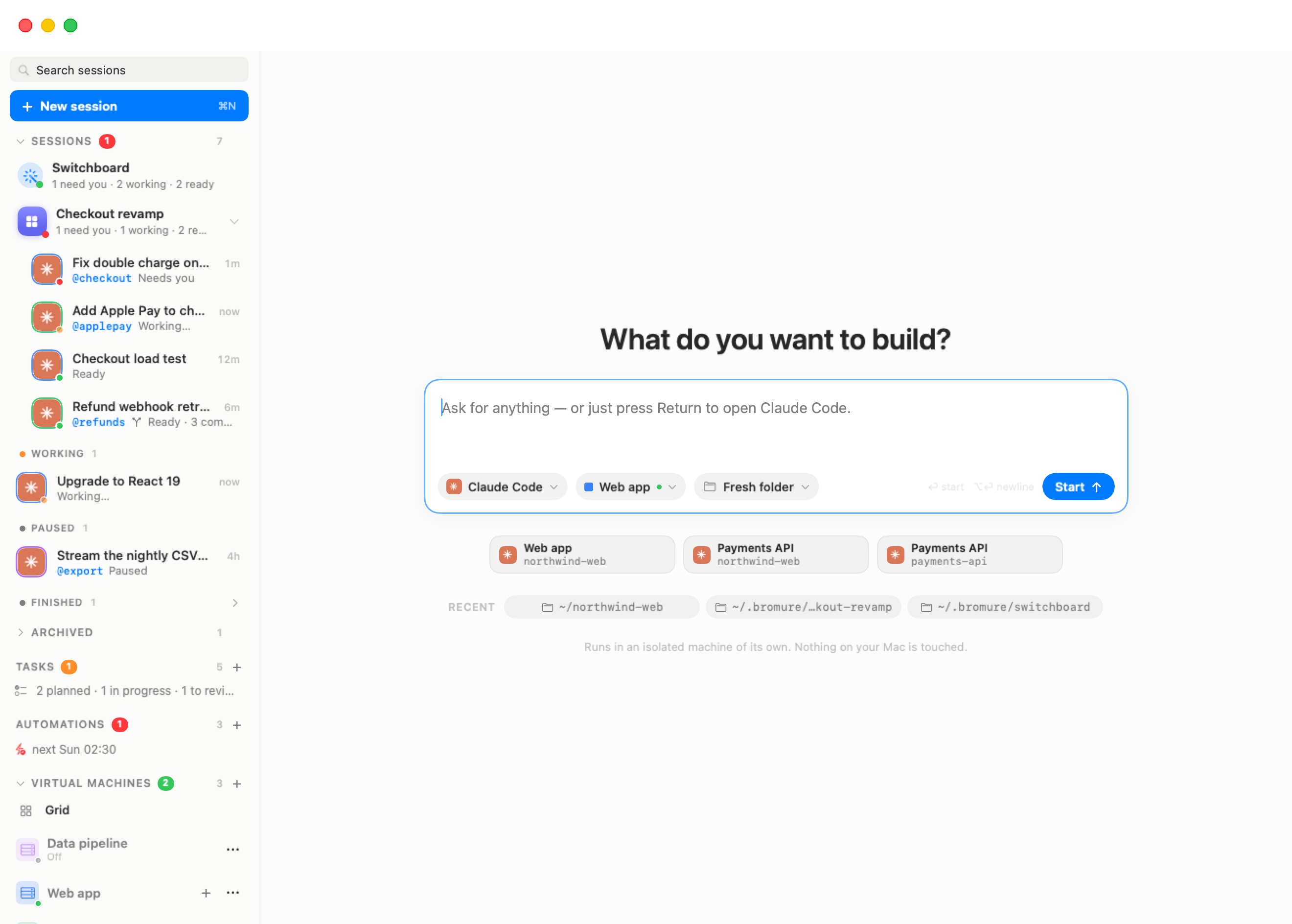
The section header carries:
- a green badge with the number of machines that are running or starting;
- the total number of machines;
- a + button (tooltip New workspace) that creates a machine. Option-click it to import settings from the config files on your Mac first (see Creating a machine).
Unfolded, the section lists, top to bottom:
| Entry | What it is |
|---|---|
| Grid | A stage that tiles live terminals side by side. See The Grid. |
| One row per machine | The machine, its terminal tabs while it runs, and a Docker node while at least one container is running in it. |
| Kubernetes | Your Kubernetes clusters, one row each. Shown only once a cluster exists. See Kubernetes Clusters & Registries. |
| Registries | Your private container registries. Shown only once a registry exists. See Kubernetes Clusters & Registries. |
| Messaging | The Messaging Connector VM, once you have set it up. See Switchboard & Messaging. |
Clusters, registries and the connector are managed VMs too, but they are not machines: you don't run sessions on them, and they have their own dashboards.
Machine rows
Each machine row shows, left to right:
- A tinted tile. A server-rack glyph in the machine's Color (set in General settings), with a small run-state dot in its corner.
- The name. A red warning triangle follows it when the machine has been flagged compromised by the credential-leak detector; such a machine refuses to boot until it is wiped (see Credentials).
- A state label under the name: Off, Starting… or Suspended. A running machine shows no label.
- Buttons. While the machine runs, + opens a new terminal tab (New tab (⌘T)), and hovering the row reveals Pop out to its own window and Close this VM. The ⋯ button opens the machine menu on every row.
Click a machine's name to show its dashboard. Click one of its tabs to show that terminal on the stage.
| State | Dot | Meaning |
|---|---|---|
| Off | Gray | Not running. No RAM or CPU in use; only its disks exist. |
| Starting… | Orange, pulsing | The VM is booting. |
| Running | Green | Booted. Its terminals and agents are live. |
| Suspended | Yellow | RAM saved to disk. It resumes where it left off. |
Agent tabs are sessions
A running machine's tabs are the tmux windows inside it: the agent tabs your sessions run in, plus any terminal you open yourself. Any coding agent you start in a machine terminal (by typing claude, codex and so on), and every agent started by a coding task or an automation, also appears as a session in the sidebar's Sessions list. You can switch between an agent's chat and its terminal tab with the Linux pill (⌥⌘U); see The Sessions Home.
Sessions on a deleted machine
When you delete a machine, its sessions stay in the sidebar, dimmed, with the status Machine removed. In the Archived fold they are grouped, with any session whose folder is gone, into one line, "1 session whose machine or folder is gone" or "N sessions whose machine or folder is gone", with a Delete button that deletes those conversations.
The machine dashboard
The dashboard is a machine's control panel. Open it by:
- clicking the machine's name in the Virtual Machines section;
- choosing Machine Details from the toolbar's machine menu, or from the right-click menu of a session's machine chip;
- choosing the machine under Machines in the ⌘K palette.
At the top are the machine's tile, name, a state pill (Running, Booting, Suspended or Off) and its IP address. On the right is the action bar: New Terminal, Suspend, Reboot and Shut Down while the machine runs, or Start / Resume otherwise.
Below that, five cards report resources:
| Card | Off or suspended | Running |
|---|---|---|
| CPU | — | Live CPU load, with a sparkline. |
| Memory | Allocated RAM, e.g. 8 GB (allocated) | Memory in use, of the allocation. |
| vCPUs | Core count (cores) | The same count, with the guest's load average. |
| Disk | Space the system disk takes on the Mac ((host)) | Disk use as the guest's own filesystem reports it. |
| Uptime | — | Time since boot. |
Memory comes from the machine's Resources settings. Values refresh about every 1.5 seconds; zeros right after boot mean the guest hasn't reported yet.
While the machine runs, a Listening Ports card lists the sockets reachable from outside the VM as <VM-IP>:<port> endpoints; click one to copy it. Services that look like HTTP also get a globe button that exposes that one service to the internet through a Cloudflare quick tunnel. The first time, a dialog titled Expose services to the internet via Cloudflare Tunnel? explains the one-time download (about 18 MB) and asks you to Agree & Expose.
A Configuration card recaps the settings that matter most before you start: one row per agent with where it runs, Guardrails, Prompt-injection scan, and Shared folders.
The machine menu in the toolbar
When a session or a machine tab is on the stage, the toolbar shows a capsule with the machine's color and name. Click it for everything about that machine:
| Item | What it does |
|---|---|
| Settings… | Opens the machine's settings editor. |
| Machine Details | Shows the dashboard. |
| Copy IP Address (…) | Copies the machine's IP address. Only while it runs. |
| Inspect Trace | Opens the Trace Inspector for this machine (also ⇧⌘I). |
| Pop Out to Its Own Window | Moves the machine into a window of its own (see Pop out and re-dock). |
| Reboot | Shuts the machine down cleanly and boots it fresh, after a Reboot “…”? confirmation. Hold ⌥ while choosing it — the item turns into Force Reboot — to cut the power at once instead. See Rebooting a machine. |
When the session's machine isn't running, the menu starts with "Not running — starts with your next message" and offers only Settings… and Machine Details.
On a machine's own terminal tab, the toolbar also shows the Fusion bolt and, when the machine uses an on-device model, an engine badge (see Models & Providers). The globe (⌃⌘B) and Files (⌃⌘E) buttons toggle the browser and the Files pane.
Starting and stopping
Starting a machine
A machine starts when:
- you start a session on it, or send a message to a paused session on it;
- you click Start (or Resume) on its dashboard, or choose it from its ⋯ menu;
- you click Start on one of its placeholder cells in the Grid;
- an automation or a coding task needs it (see Automations);
- you log in to your Mac and Start this VM at login is on in its General settings;
- you run
bromure-cli vm run(see CLI, API & MCP).
What boots
- First launch. The app makes the machine's system disk (
disk.img) as an APFS copy-on-write clone of the shared Ubuntu base image. The clone is instant and takes no space until the guest writes to it. The home image is created, and the VM boots with the RAM set in its Resources settings. - Later launches. The same system disk and home are reused, so everything you installed is still there.
- A suspended machine. The saved RAM snapshot is restored instead of booting, and the machine resumes where it was, tabs included.
Each successful boot also takes a rollback point of the home (see Rewinding the home).
By default every machine joins Bromure's private NAT network, gets a stable address, and can reach the other machines and the browser VM. A per-machine Bridged mode is in General settings.
The boot screen
While a machine boots, an animated overlay covers its terminal: the machine's name over a scanning progress bar, sometimes with a status line. It appears only if the boot takes more than 0.4 seconds and fades out as soon as the first terminal is ready. A machine still on the old shared-folder home is moved to a private ext4 home image on its next boot; the overlay then shows determinate progress, for example "MOVING HOME — 42% OF 7.9 GB".
If no terminal appears within 30 seconds, the overlay turns into a DIVE FAILED panel ("“…” never returned a terminal after 30 seconds. The VM may be stuck, or its system disk may be damaged.") with two buttons:
- Keep Waiting restarts the 30-second wait.
- Reset System Disk… re-clones the machine's system disk from the base image. Your home folder survives.
If the boot stops because the system disk failed its filesystem check, the overlay shows a DISK ERROR panel instead, with Repair Disk (replays the disk's journal in place) and Reset System Disk…. Your home survives either way. See Troubleshooting if boots keep failing.
Questions before a boot
A start can be preceded by one of these:
| Prompt | When | Choices |
|---|---|---|
| A newer base image is available. | The base image on your Mac is newer than the one this machine's system disk was cloned from. | Yes, upgrade resets the system disk from the new base, then boots (your home is untouched). No boots as it is and doesn't ask again until a different base image ships. Remind me later boots as it is and asks again on the first boot after a day. The answer is remembered per machine. |
| Compromised machine | An earlier run was flagged for credential exfiltration. | Confirm a wipe of the system disk, home and saved state before it boots. Settings, tokens and SSH keys are kept. See Credentials. |
| Model still downloading | An on-device model the machine needs hasn't finished downloading. | The start is refused until it has. |
When nobody is there to answer (an automation, a coding task, a login start), a pending base-image upgrade is skipped and the machine boots as it is; a compromised machine doesn't start until you start it yourself.
Stopping a machine
From the machine's ⋯ menu or its dashboard:
- Suspend saves the VM's RAM to disk and stops it. Resume picks up exactly where it was. No confirmation, since nothing is lost.
- Shutdown powers the VM off after a confirmation ("Powers off the VM and stops everything running inside it. The system disk is kept; in-progress work in running processes is lost."). The next start is a full boot.
- Reboot — see Rebooting a machine.
Running reboot inside the guest also works: the app notices and boots the machine again in place.
Rebooting a machine
Reboot is the same everywhere it's offered — the machine row's ⋯ menu, the machine dashboard and the toolbar's machine menu — and on a fat client as on this Mac:
- Reboot “…”? asks for confirmation: "Shuts the machine down cleanly and boots it fresh. Everything running inside it stops."
- The machine is asked to power off, like pressing its power button, so its filesystems flush and its services stop. If it hasn't powered off after 15 seconds (60 seconds for a Kubernetes node or registry), its power is cut.
- It boots fresh — never from a saved state — exactly as a start does, with the current settings (Preferences › Models included).
Force reboot. Hold ⌥ (Option) while you choose Reboot: in the toolbar's machine menu the item reads Force Reboot while ⌥ is down. The confirmation becomes Force reboot “…”?, and the machine's power is cut at once — like pulling the plug — before the fresh boot. Anything unsaved inside it is lost, so keep it for a machine that doesn't respond to a normal reboot.
From the command line, bromure-cli vm reboot <machine> does the clean reboot and --hard the forced one (see CLI, API & MCP).
A stopped or suspended machine's sessions aren't lost. They show as paused and continue with your next message, which starts the machine again. For what happens when you close a machine instead, see Closing a machine.
The ⋯ menu
The ⋯ button on a machine row adapts to the machine's state:
| Item | When | What it does |
|---|---|---|
| Start | Off | Boots the machine. |
| Resume | Suspended | Restores the saved state. |
| Shutdown · Suspend · Reboot | Running or starting | See Stopping a machine. |
| Add Worktrees to Grid | Running | Adds every worktree tab of this machine to the Grid. |
| Edit… | Always | Opens the settings editor. |
| Duplicate | Always | Copies the machine. |
| Rewind home… | Always | Rolls the home folder back to an earlier boot. |
| Reset disk | Always | Re-clones the system disk from the base image. |
| Delete workspace | Always | Deletes the machine. |
Editing and renaming
Edit… (or Settings… in the toolbar's machine menu, or “…” Settings… in ⌘K and in a session's menus) opens the settings editor, titled with the machine's name. Change anything and click Save. To rename a machine, change Name in the General pane. Only one editor window is open at a time. The panes are documented in Settings Reference.
Duplicating
Duplicate makes a full copy right away, named after the original with copy appended (for example Web app copy). There is no confirmation. The copy gets every setting and credential, the system disk and the home, cloned copy-on-write where possible, so it takes no extra space until the two diverge. Three things are not copied: the saved RAM state (the copy boots fresh), the tab layout, and the network MAC address (the copy joins the network as a different machine).
Rewinding the home
Each time a machine boots successfully, Bromure keeps a copy-on-write checkpoint of its home image. The ladder keeps the last few boots, then one a day for a week, then one a week for a month. Checkpoints cost nothing to create, but they take real disk space as the home diverges from them.
Rewind home… opens a sheet listing those rollback points.
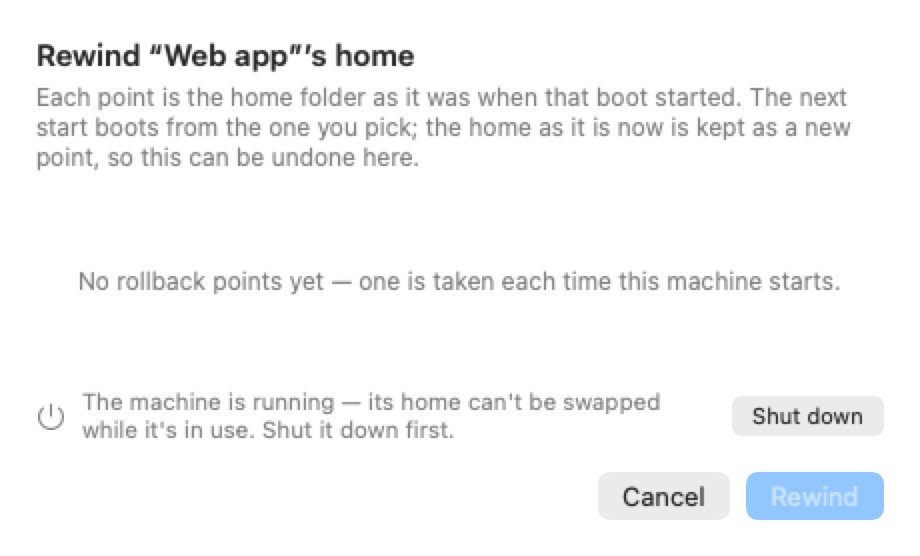
Each point shows its date, how long ago it was, and its size. Pick one and click Rewind. The next start boots from that home. The home as it is now is kept as a new point first, so a rewind can itself be undone from the same list.
The machine must be off, because the home image is swapped whole. While it runs, the sheet says "The machine is running — its home can't be swapped while it's in use. Shut it down first." with a Shut down button, and Rewind stays disabled. A machine that has never booted shows "No rollback points yet — one is taken each time this machine starts."
The same rollback is available as Restore home… in the Resources pane, next to Erase home…, which wipes the home entirely.
Resetting the system disk
Reset disk (also Reset to base… in the Resources pane) re-clones the machine's system disk from the current base image. The confirmation, Reset “…” system disk to base?, lists what goes: anything you installed with sudo apt install, changes to /etc, /var, /usr, /opt, and system-wide config. Your home folder is untouched: projects, dotfiles, .ssh keys, npm-global, .cargo and shell history all survive. Confirm with Reset to base.
A reset also drops the saved RAM state and tab layout, so the next boot is a clean one. It is refused with Close “…” first. while the machine runs.
Note: A checkpoint and a suspend answer different questions. Suspend keeps the running state so you can resume it. A checkpoint keeps the home as it was at a known-good boot so you can walk a broken environment back. A saved suspend state is discarded whenever the disk it belongs to is reset or rewound.
Deleting a machine
Delete workspace (also Workspaces › Delete, which deletes the machine on stage — the session's machine while a session is shown — and is disabled when the stage shows no single machine, such as a room, a board or the new-session screen) asks Delete workspace “…”? — "Removes its disk, settings, and SSH key. The mounted host folder is untouched." Confirm with Delete.
This deletes the machine's whole folder under ~/Library/Application Support/BromureAC/profiles/: its settings, encrypted secrets, system disk, home image, checkpoints and host-side SSH keys. It also removes the machine from any Kubernetes cluster's access list. Host folders you shared into the machine live on your Mac and are left as they are.
Warning: Deleting a machine can't be undone. There is no trash. Anything you want to keep should be in a shared host folder, or committed and pushed, before you delete.
Creating a machine
You can create a machine from:
- the + on the Virtual Machines header;
- Workspaces › New Workspace… (⇧⌘N);
- Workspaces › New Workspace from My Configs… (⇧⌥⌘N), or Option-click on the +;
- New machine… at the end of the Machine chip's list on the new-session screen;
- New Machine… in the ⌘K palette.
Each of these opens the settings editor, titled New workspace, filled in from your defaults in Preferences and with a free name such as Default workspace or Default workspace 2. Give it a Name in the General pane, change anything else you need, and click Create (or Cancel). New Workspace from My Configs… first runs the credential import from the onboarding wizard, so the new machine starts with the credentials found on your Mac.
Every agent is available on every machine, and a machine uses the models set in Preferences › Models unless you give it its own in its Models pane. See Models & Providers.
Tip: Most editor changes apply when you click Create or Save. A few take effect at once because they touch shared state rather than the machine's own settings: model downloads, MCP OAuth sign-ins, and SSH key imports.
Machine terminals and tabs
Inside a machine, every terminal is a window of one tmux session. tmux is the source of truth: the app mirrors the machine's windows as tabs under its row, so a machine can keep running with no window open, be popped out, or be mirrored from another Mac (see Remote Access & Clients) without disturbing its agents.
When a machine's terminal is on the stage, these chords act on its tabs:
| Shortcut | Action |
|---|---|
| ⌘T | New tab (also + on the machine row, and Workspaces › New tab) |
| ⌘W | Close the tab. Closing the last tab closes the machine (see Closing a machine). |
| ⌘1 – ⌘9 | Go to the tab with that number. Numbers appear next to the selected machine's first nine tabs. |
| ⌘D | Add this terminal to the Grid and show the Grid (Workspaces › Add Terminal to Grid) |
⌘N still starts a new session. When a session is on the stage rather than a terminal, ⌘1 – ⌘9 and ⌘W act on sessions instead; see The Sessions Home.
Tab labels show the program in the foreground (claude, codex, a shell…). Each tab's icon carries the agent's status dot: orange and pulsing while it works, green when it has finished, red when it needs you.
Worktree tabs
A worktree tab is an agent running in its own git worktree: another branch of the same repository checked out in its own folder. For agent conversations, branch sessions are the usual way to do this. On a machine's terminal tabs, the classic worktree commands are still there.
Right-click a tab for:
- New worktree… (⇧⌘G, Workspaces › New worktree). Shown disabled as New worktree… (Not in a git repo) when the tab isn't in a repository. It opens a dialog, "Creates a git worktree branched from this tab's current commit and opens a nested agent in it.", with a task name, the agent (claude, codex, grok, kimi or omp) and an optional initial prompt. The branch is named
wt/<slug>after the task name. - New automation…, which opens the automation editor with this tab's machine and folder (see Automations).
- On a worktree tab: Merge… (⇧⌘M, Workspaces › Merge worktree), Attach terminal (a plain shell in the worktree's folder) and Discard worktree (removes the checkout and deletes its branch, after asking).
- On a merge tab that hit conflicts: Have the agent resolve conflicts.
Merge… lets you pick where to merge: the parent worktree (the default), or any ancestor up to the repository root, flagged ⚠︎ skips intermediates when it skips a level. If the machine has a GitHub credential, Create Pull Request pushes the branch and has the agent open a pull request instead. Conflicts start the agent in the merge tab to resolve them. Only committed work is merged; uncommitted changes are lost when you discard the worktree.
Worktree tabs nest under the tab they were branched from, up to six levels deep. When the Files pane shows a repository on a machine tab, a bar under its header offers New worktree…, and Merge and Delete when the tab is itself a worktree.
Terminal appearance
Machine terminals are native, GPU-rendered terminals. Their font, colors, cursor and window opacity come from the machine's Appearance settings and apply as soon as you save. Only fixed-width fonts are used; anything else falls back to Menlo. With an opacity below 1.0 the terminal area is frosted glass over the desktop (opacity is limited to 0.3–1.0). ⌘+, ⌘− and ⌘0 zoom the font, as do a trackpad pinch and a two-finger double-tap to reset.
These settings apply to terminals only. The chat view of a session has its own look.
The Grid
The Grid tiles up to 25 live terminals (at most 5 × 5), from any mix of machines, so you can watch several agents at once. Each cell is its own live view of that tmux window, independent of the machine's own stage, so both can be open.
- Show it by clicking the Grid node at the top of the Virtual Machines section, or the grid button on the collapsed sidebar rail. Its member terminals are listed under the node; click one to focus its cell.
- Add terminals by dragging a tab row onto the Grid node ("Drag terminals here to watch them side by side"), by pressing ⌘D on a terminal, or with Add Worktrees to Grid in a machine's ⋯ menu.
- New terminals join by themselves. Every terminal opened after a machine is up (an agent tab, a worktree, a plain terminal) is added at the end. When the Grid is full, the oldest cell leaves to make room. Right-click the Grid node to turn Add new terminals automatically on or off. Rearranging cells by hand turns it off; the arrangement is then yours.
- Cells. Each cell's header shows a status dot, the machine name and the tab label, with Open in workspace and Remove from grid — the terminal keeps running buttons and a handle to drag the cell elsewhere. Right-click the header for the same actions, or a member under the Grid node for Remove from Grid.
- Zoom. Double-click a cell, or press ⌘↩ on the focused cell, to fill the stage with it. Do it again to unzoom. Esc doesn't unzoom, because agents use Esc.
Cells of a machine that is off or suspended stay as placeholders with Off or Suspended and a Start button. Cells whose terminal disappeared from a running machine are removed. The Grid, including the automatic-add setting, is kept across restarts in ~/Library/Application Support/BromureAC/grid-layout.json.
Pop out and re-dock
Pop Out to Its Own Window (toolbar machine menu, or the pop-out button on a machine row) moves a running machine into a window of its own; its tabs become a strip of pills in that window's title bar. The popped-out window has its own toolbar: the IP address (click to copy), a folder button listing the host folders shared into the machine, reboot, trace, settings, and Move this VM back into the main window to re-dock it.
The Files pane
The Files pane is a file browser on the right of the stage. Toggle it with ⌃⌘E or the toolbar's Files button.
It shows:
- the folder of the session on the stage, whether or not its agent is running (in a room, the focused cell's session);
- on a machine's terminal tab, that tab's current folder (the repository root when it is in one).
Moving between sessions or tabs moves the pane with you. With nothing to show, it reads "No session selected".
Browsing
- The header names the folder on show. ↑ (Up to the enclosing folder) goes to the parent; double-click a folder, or right-click it and choose Show This Folder, to go into it.
- Files are colored by their git status with one-letter badges (M, A, U, D, R, !), and folders that contain changes carry a dot. This works for the folder's own repository and for repositories nested inside it, so browsing your home still shows each project's changes. Folders with changes unfold on their own once.
- A pill counts the changed files. The filter button switches to Show changed files only, and the refresh button reloads (the pane also refreshes every 4 seconds while visible).
- Click a file to open a detail view with Diff and File tabs: a colored diff with +/− counts, or a preview (Markdown rendered, source highlighted). A pop-out button opens the detail in its own window, which follows your selection.
When the file on show belongs to the agent on the stage, the diff grows comment bubbles in its margin: comment on lines, then Send to agent to hand the comments to that agent in one message. The review window does the same across a whole change.
Moving files in and out
- Out. Drag a file to the Finder, or right-click it and choose Save to Downloads. Copy Path copies its path inside the machine.
- In. Drop files from the Finder anywhere on the pane to copy them into the folder on show. An empty folder says "Empty folder — drop files here to add some."
Transfers go over the machine's own channel, not a shared folder, so they work on any machine, including remote ones. The machine must be running.
When it opens by itself
- For a session: the app checks the folders of running sessions for changes about every ten seconds. The first time the session on the stage has changes (uncommitted work in a repository; in any other folder, files written since the session began), the Files pane opens. If you close it, it stays closed until the folder is clean again (after a commit, say) and then changes again.
- On a machine tab: entering a git repository opens the pane, and leaving it for a folder that isn't one closes it. Closing it by hand wins until you move to another repository.
Note: The Files pane never edits file contents. It lists up to 20,000 files (beyond that the tree is truncated), previews files up to 512 KB and diffs up to 1 MB.
The clipboard and pasting files
The clipboard crosses into machine terminals through the terminal itself; there is nothing to configure.
- Guest → Mac. Copying inside the guest (tmux copy mode, or any program using OSC 52) lands on the Mac's clipboard. Releasing a mouse selection in tmux copies it.
- Mac → guest. ⌘V pastes the Mac's clipboard as text (bracketed paste).
- Selecting. A mouse drag selects text; ⌘C copies it. Selecting alone never copies.
Pasting and dropping files
When the clipboard holds files rather than text, ⌘V in a machine terminal becomes a file transfer. The same happens when you drag files onto the terminal. Each file is copied into the machine under /home/ubuntu/.bromure/pastes/, and its path in the machine is typed in its place, so the agent can read it from disk.
- Any regular file works: images, PDFs, archives, anything. A copied file keeps its name, prefixed with a timestamp and with characters that a shell would need quoting replaced by
_. A bitmap on the clipboard (a screenshot, a browser's "Copy Image") becomes aclipboard-<timestamp>-<id>.pngfile. - Up to 512 MB in one paste. Anything larger, a selection that includes a folder, or a clipboard that also carries text pastes as text as usual, so ordinary ⌘V is never hijacked.
- A chip appears at the cursor with the upload's progress, stays briefly when it is done (red if it failed), and goes away with your next keystroke.
- Pasted files live in the home image, so their paths survive a reboot. Files older than 7 days are cleaned up inside the machine.
In a session's chat, dropped and pasted files become attachments instead; see The Chat.
Tip: Links go the other way on their own. When a program in the machine opens an
httporhttpsURL (an OAuth sign-in,xdg-open), it opens in your Mac's default browser.
Shared folders
For ongoing work on files that live on your Mac, share the folder into the machine instead of copying files back and forth. Up to 8 host folders can be shared; each appears in the guest home as ~/<folder name>. See Folders settings.
Closing a machine
You close a machine with Close this VM (the × on its row), the close button of its popped-out window, or ⌘W on its last tab. What happens is set by When closing the window in the machine's General settings:
| Setting | What it does |
|---|---|
| Run in the background | Only the view goes away. The VM keeps running and its agents keep working; open it again from the sidebar at any time. |
| Suspend | Saves the VM's RAM to disk and stops it. The next start restores it with the same terminals. |
| Shut down | Powers the VM off cleanly. The system disk and home are kept; the next start is a full boot. |
| Ask (default) | Asks Close “…”? each time, with Run in the Background, Suspend, Shut Down and Cancel. |
Closing a machine is not the same as ending a session. To stop one agent, end or archive its session (see The Sessions Home); the machine keeps running for its other sessions.
A few details:
- Resume needs the same machine. A suspended machine can only resume with the same configuration, so its identity, network address and shared folders are saved with the snapshot. Changing its shared folders while it is suspended asks you to discard the saved state; the next start is then a fresh boot. Home and shared-folder files are unaffected.
- Failed resumes. If a saved state can't be restored when you start the machine yourself, it boots fresh instead.
- Nothing is destroyed by closing. Data only goes with Reset disk, Erase home…, Delete workspace, or the wipe after a credential-exfiltration alert, and even then settings, tokens and SSH keys are kept and shared host folders are never touched.
Where a machine is stored
Each machine is a folder under ~/Library/Application Support/BromureAC/profiles/<id>/:
| Path | Contents |
|---|---|
profile.json | All non-secret settings. |
secrets.enc | Every secret, encrypted with a key held in your Keychain. |
disk.img | The machine's own copy of the base OS. |
home.img | The persistent /home/ubuntu. |
checkpoints/ | Rollback points of the home (and system disk). |
vm.state | The saved RAM of a suspended machine. |
agent/, ssh/ | Host-side SSH key material. The private key never enters the VM. |
Your defaults from Preferences are kept outside profiles/, which is why they never appear as a machine. Secrets are never written into profile.json or copied into the VM: the guest only holds stand-ins, which the host proxy swaps for the real values on the wire (see Credentials & the Wire Boundary).
Tip:
disk.img,home.imgand the checkpoints are ext4 images. Workspaces › Open ext4 file… browses, extracts from and repairs them on your Mac without booting anything. See Advanced.
From the command line
Everything in this chapter can also be done without the window. With the app running, bromure-cli vm ls lists machines and their state, and workspaces create, workspaces edit, workspaces describe and workspaces rm create, change, inspect and delete them (vm is an alias for workspaces). See CLI, API & MCP.