General
The General pane holds a machine's identity and what happens when you close its window. (A machine is what the settings editor calls a workspace.) It is the first pane the editor shows. Nothing here changes the VM's contents or credentials.
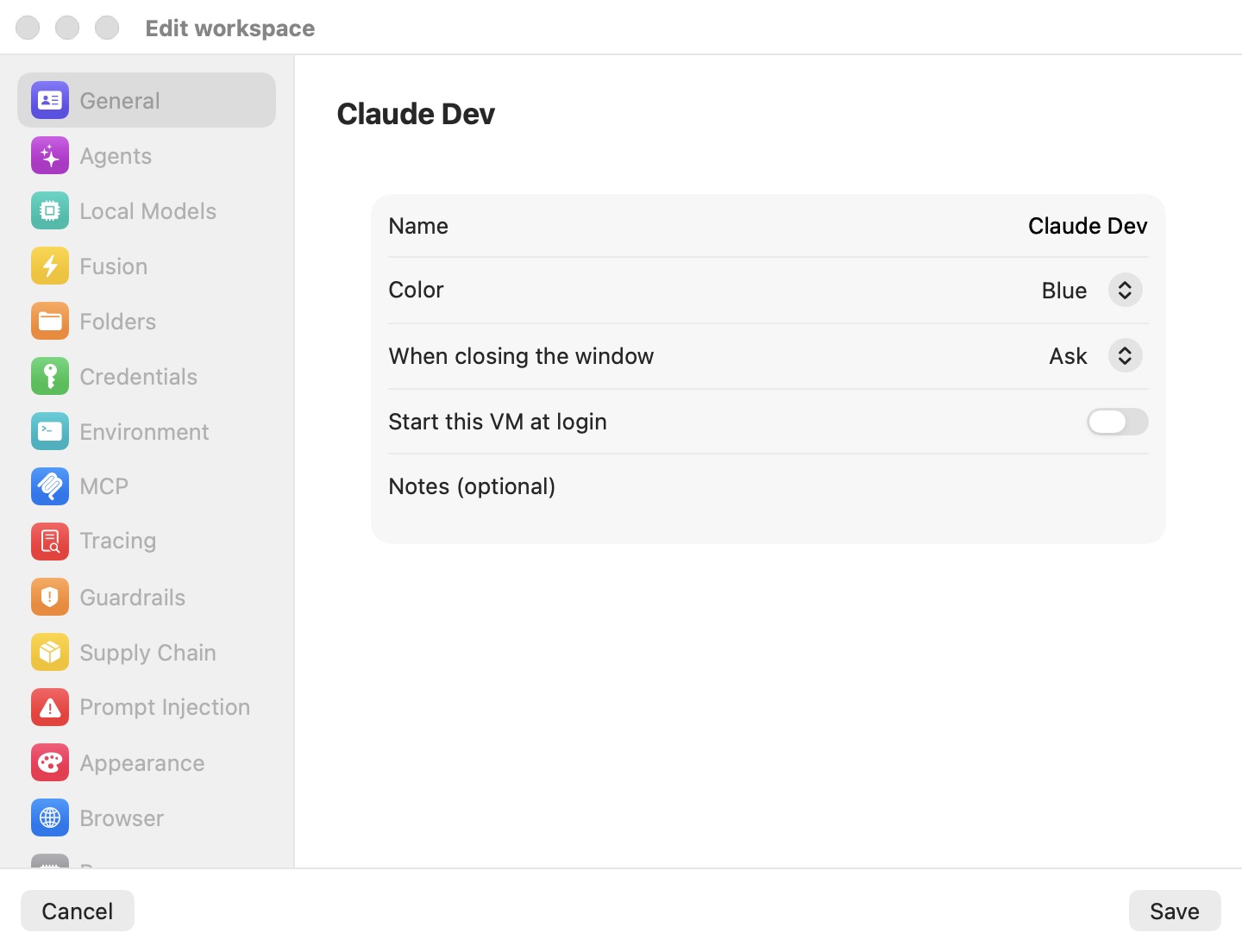
Settings
| Setting | Description |
|---|---|
| Name | The machine's name, shown in the sidebar's Virtual Machines section, the machine menu, session headers, and the editor's title. The only field required to save. New machines are pre-named Default workspace (numbered Default workspace 2, 3, … if the name is taken). Hidden in Preferences, where the template is always named Defaults. |
| Color | The machine's accent color: Blue (default), Red, Green, Orange, Purple, Pink, Teal, or Gray. It tints the machine's tile in the sidebar, the dot in the machine menu, and the machine's session avatars. |
| When closing the window | What happens to the running VM when you close its window: Run in the background, Suspend, Shut down, or Ask. Default: Ask. |
| When a task is approved | What the main button of a coding task's review does: Merge into the branch it came from, or Open a pull request. In Preferences this is the app-wide default (Merge into the branch); in a machine it reads App default (…) unless you override it there. Each task can still choose otherwise in its editor. |
| Kimi approvals | How much Kimi Code asks before acting on this machine: Never ask (default) or Ask when needed. See Kimi approvals. |
| Start this VM at login | Boots this machine when you log in to your Mac. Default: off. Hidden in Preferences. |
| Notes (optional) | A free-form note kept with the machine. Default: empty. Hidden in Preferences. |
| Reach | Which other machines this machine's agents may delegate to and ask by @nickname. Every workspace (default: on), or, with it off, a switch per other machine. Hidden in Preferences. |
Name and color apply to a running machine as soon as you save.
When closing the window
- Run in the background — the window closes and the VM keeps running. Agents keep working and you can reopen the machine at any time.
- Suspend — the VM's memory is saved to disk and the VM stops using CPU. Resuming is nearly instant and picks up exactly where it left off.
- Shut down — a clean power-off. The next start is a normal boot.
- Ask (default) — the app asks each time, offering the three choices above.
See Machines for how running, suspended and stopped machines appear in the sidebar.
Kimi approvals
Kimi Code asks before it acts unless it is told otherwise, and has no per-tool allow list Bromure could fill in. This setting picks its mode for every Kimi session the app starts on this machine — a new session, a resume, a relaunch, a coding task, a plan, a branch session, the Switchboard:
- Never ask (default) — Kimi Code runs every command and every tool, Bromure's own included (delegation, the Switchboard, the board, the browser), without stopping to ask. It also stops asking multiple-choice questions and approves its own plans: when it needs your input it asks in plain text in the conversation, and you answer in the composer. The machine's VM and Bromure's host-side protections (credentials, guardrails, the firewall, supply-chain and prompt-injection scanning) are the safety boundary.
- Ask when needed — routine edits and commands run on their own; risky actions, questions and plans still wait for you. Approvals show in the chat as a card with the panel's options, and a question as a card with its choices (see Sign-in and status cards).
The change applies the next time an agent starts or resumes; a Kimi Code already running keeps its mode. Inside a running session, Kimi's own /permission command switches it until the session ends. Automations run Kimi Code in its one-shot mode, which never asks, whatever this setting says. In Preferences, the setting is the default for new machines.
Starting a machine at login
Turning on Start this VM at login installs a per-user macOS LaunchAgent (io.bromure.agentic-coding.boot); no administrator password is needed. At your next login it starts Bromure Agentic Coding without a window and boots this machine, so it is ready before you open the app. The LaunchAgent is removed as soon as no machine has the option on.
Reach
The Reach section, at the bottom of the pane, decides where this machine's agents may send work. Its caption: "Agents in this workspace can hand work to agents elsewhere (a delegation runs in the other workspace) and ask a session there by its @nickname; files travel along. Which workspaces they may reach:"
- Every workspace (on by default) — the agents may reach every other machine on this Mac, and the sessions of remote Macs this Mac mirrors.
- Turn it off to list the other machines, each with its own switch; the agents may reach only the ones you turn on. With no other machine yet, the section says "No other workspace yet — agents here can only reach each other." A restricted machine's agents don't reach remote Macs.
The rule is one-way: whether another machine's agents can reach this one is set in that machine's own Reach section. See Agents Working Together.
Related chapters
- Machines — creating, duplicating, resetting, and deleting machines.
- Agents Working Together — delegation and @nickname requests, which Reach limits.
- The Sessions Home — where machines and their sessions appear.
- Settings Reference — all panes at a glance.