Branches & Review
A branch session is a session that works on its own git branch, in its own checkout of the folder it came from. Under the hood this is a git worktree: a second working copy of the same repository, sharing its history but with its own files and index. Your work in the original session isn't touched. When the branch is ready, you merge it back from the session itself.
Use a branch to try an idea next to the main line of work, to split a task across several agents that won't trip over each other's uncommitted files, or to let an agent explore something you may throw away.
This chapter also covers the review window, which works for any session with a folder, whether it is a branch or not.
Starting a branch
Branch any session that has a folder:
- right-click it in the sidebar and choose New Branch…
- choose New Branch… in the session header's ⋯ menu
- choose New Branch… in the ⌘K palette, which acts on the session on stage
The New branch sheet reads "A session of its own, on a copy of folder with its own git branch. Your work in “session” isn't touched; merge it back when it's ready." It has these parts:
| Field | Purpose |
|---|---|
| What should it do? | The new session's first message, for example "Try moving the session cache to SQLite". Leave it empty to open the agent idle. |
| Name | The session's name and the source of its branch name. Leave it empty and the name is taken from the message. |
| Agent | Which agent runs in the branch. It defaults to the agent of the session you branched from. |
| Start from | The branch to start from. The first entry is the folder's current branch, "branch (current)", or The current commit on a detached checkout. Other local branches follow, most recently committed first. See the note below. |
- Start from (current branch): "At its latest commit — uncommitted changes stay behind. Merges back into it."
- Start from (another branch): "At branch's latest commit, and it merges back into branch." The branch you start from is also the branch the session merges back into.
Under the fields, the sheet shows the branch it will create, wt/<name>. The name is lowercased, with other characters turned into dashes. Click Start (⌘⏎).
Note: Only committed work is branched. Uncommitted changes in the original folder stay there and are not copied to the new checkout.
What the sheet checks first
The sheet asks the machine what the folder is ("Checking folder…") and adapts:
- A repository: the Start from picker described above. If the repository has a
.worktreeincludefile, the sheet adds "Also copies in, as .worktreeinclude says: …" followed by the files it lists. These are files git doesn't track, such as a local.env, that are copied into the new checkout. - A repository with no commit yet: "The repository has no commit yet, so the branch starts from an empty first commit. Files in the folder stay behind."
- Not a repository: "folder isn't a git repository yet, and a branch needs one." Tick Make it one (git init) to run
git initthere. "Everything in the folder goes into a first commit, which the branch starts from." Start is disabled unless this box is ticked. - The machine isn't running: "The machine isn't running — the folder is checked once it starts." The option If it isn't a git repository, make it one applies once the machine starts.
Tip: Agents can start branches too, with the
worktree_createtool of thebromure-delegationMCP server. Such a branch appears exactly like one you started. See Agents Working Together.
A branch session
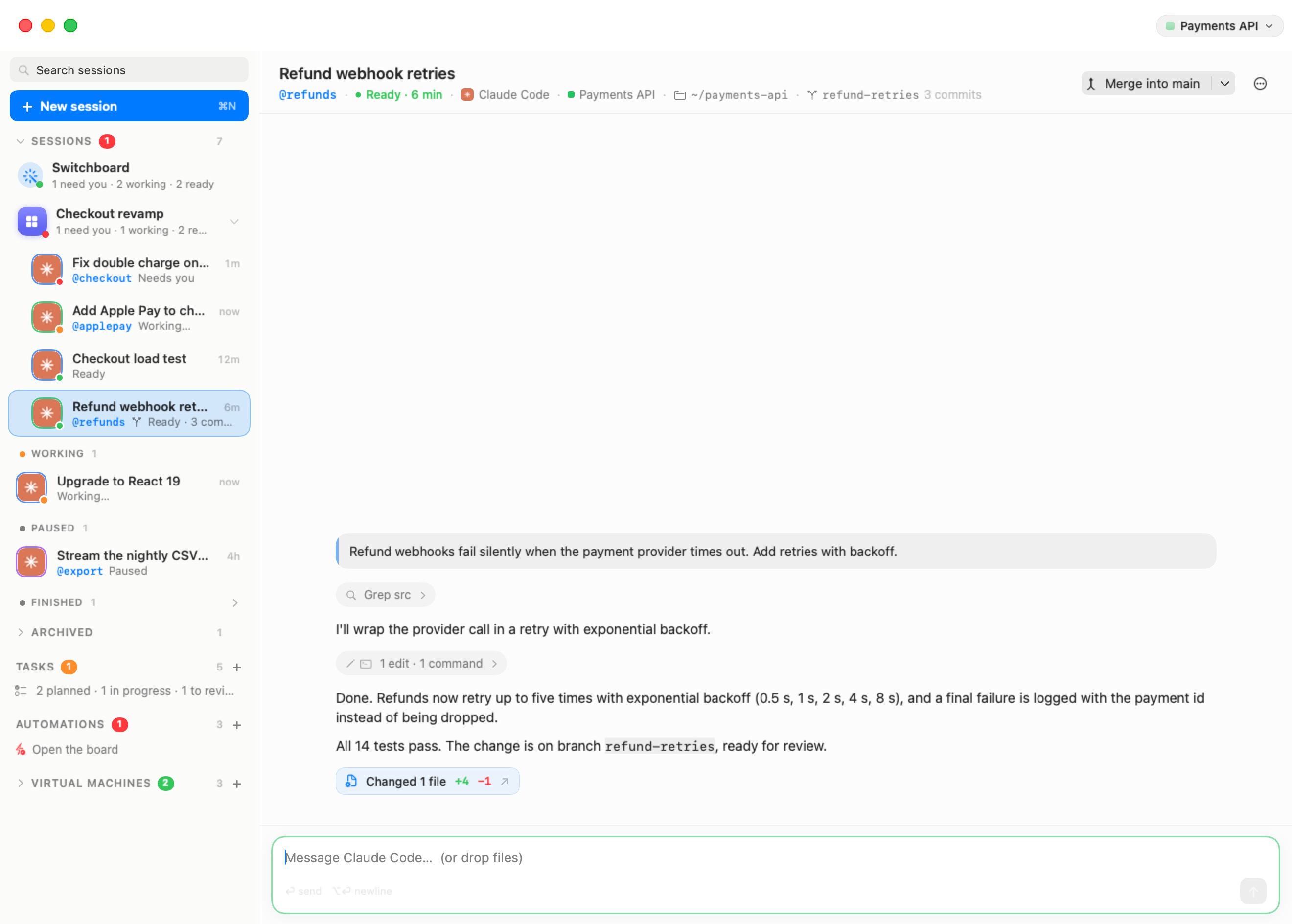
A branch session is nested under the session it came from in the sidebar. Its row adds a branch glyph and a status line such as "3 commits". The status line counts:
- commits ahead of the branch it came from ("1 commit", "n commits")
- uncommitted files ("n uncommitted files")
- commits it is behind ("n behind")
It reads "no changes yet" until the first change. The counts are read from the machine every 20 seconds or so while it runs.
In the session header, next to the folder, a chip shows the branch name and the same counts. Hover it to read "Its own git branch, off parent — merge it back when it's ready".
Merging
Once the branch has changes, the header shows a split button, Merge into parent.
Click the main part to merge the branch into the branch it came from. Then the checkout and the branch are removed, and the session is archived. The session stays readable, with a status line of "Merged into parent".
The arrow part opens the other options, which are also in the Branch section of the session's ⋯ and right-click menus:
| Item | What it does |
|---|---|
| Review Changes | Opens the review window. |
| Merge into parent | The same as the button (menus only). |
| Squash and Merge into parent | Lands the whole branch as one commit ("Squash-merge branch"), then removes the checkout. |
| Merge, Keep Working on the Branch | Merges, but keeps the checkout, the branch and the session, so the agent can go on. |
| Open a Pull Request | Asks the agent to commit anything outstanding, push the branch and open a pull request with gh pr create against the parent branch. It replies with the URL. This needs a GitHub credential on the machine. See Credentials. |
| Open Terminal Here | A Linux terminal in the branch's checkout. |
| Discard Branch… | Deletes the checkout, the branch and the session after a confirmation. |
A merge goes like this:
- A clean branch merges at once. While it runs, the header shows "Merging into parent…".
- Uncommitted work or a conflict goes to the agent. When the branch has uncommitted files, or the merge conflicts, Bromure backs the merge out and leaves everything clean. It then asks the session's own agent, in its conversation, to commit the work, merge and resolve any conflicts. The header reads "Merging into parent — the agent is finishing it", and you can follow along in the chat. If git has no identity on the machine, the merge commit is made as
Bromure <bromure@localhost>. - Bromure checks that the merge landed before it removes anything. If the merge hasn't landed after 30 minutes, the status becomes Merge stalled: "The merge hasn't landed after 30 minutes — ask the agent where it stands." The button then reads Retry Merge.
A merge that was under way when you quit is picked up again at the next launch.
When an agent asks to merge
An agent can ask to merge a branch with the worktree_merge tool. It can ask for its own branch, or for one started from its session. It never merges on its own. A banner appears under the session's header: "Agent asks to merge branch into target". The line under it gives the branch's counts, "As one squashed commit" if the agent asked for a squash, and "The checkout is removed once it has landed."
- Review Changes opens the review window.
- Not Now declines. The agent is told not to ask again unless you bring it up.
- Merge (or Squash and Merge) runs the merge as described above. When it lands, the agent that asked is told.
Archiving or deleting a branch session
Archiving or deleting a branch session whose work isn't merged asks what becomes of the branch: "Archive “session” — and its branch?" or "Delete “session” — and its branch?".
- Keep Branch leaves the checkout and the branch on the machine, so you can merge it or pick it up later. The machine no longer reopens it at boot. Resuming the session opens it again.
- Discard Branch deletes the checkout and the branch with the session. "branch has work that isn't merged (…)" tells you what you would lose.
If nothing was done on the branch ("Nothing was done on branch yet, so there's nothing to lose by removing it."), Discard Branch is the default.
Discarding explicitly, with Discard Branch…, always confirms first: "Discard “session”? The branch branch and its checkout are deleted with the session. This can't be undone."
Branches on a machine
Branches are easy to lose track of once their session is archived, merged or gone. Branches on This Machine… opens a window listing every branch Bromure made on a machine. You find it in the session header's ⋯ menu and when you right-click the machine chip in the header.
The window, titled "Branches on machine", counts "n branches · n left behind". Each row shows:
- the branch's name, and whose it is: In a session, Session paused, Session archived, Merged, or No session
- the branch, an arrow, and the branch it merges into
- what it holds, and when it was last committed
- its checkout path on the machine
The row actions depend on who owns the branch:
- Review and Show Session for a branch that has a session.
- Open in a Session for a branch that has none. This starts the machine's default agent in the branch's checkout. The new session is a full branch session, so merging, review and discard all work.
- The trash button, "Discard the branch and its checkout", asks first. If the branch has an archived session, that session is deleted too.
Only without a session filters the list down to the branches left behind. ⌘R refreshes. Branches are read live from the machine, so the machine must be running: "Branches are read live from the machine — start it and refresh."
The review window
The review window shows a session's changes as a diff and lets you comment on them. It is not only for branches. There are three ways to open it:
- Review Changes, from the session's ⋯ menu, the Branch menus, the ⌘K palette, or the merge-request banner.
- The Changed n files line under an agent's reply in the chat. The window then opens on just the files that turn changed ("Changed in this turn"). Click Show all to see everything, and This turn to narrow it again.
- Review in the Branches window.
The window is titled "Review — session". Its parts:
- The compare picker ("What the changes are compared against"):
- Since parent is for branch sessions only, and is their default. It shows everything the branch has that its parent doesn't.
- Uncommitted shows changes not yet committed. It is the default for other sessions.
- Last commit shows the most recent commit.
- The file list shows how many files changed, "n of n viewed" with a progress bar, and the branch's commits. New files that git doesn't track yet are included and counted ("n new files not added to git yet"). Click a file to jump to it.
- Mark as viewed. The circle next to each file marks it looked at, and it folds away. The mark is tied to the file's current diff, so it comes back if the file changes again.
- The diff. Hover a line to comment on it. You can also comment on one file ("A comment on this file") or, in the field at the bottom, on the whole change.
- The header has a Refresh button (⌘R) and Open Terminal, plus the merge button for a branch session.
Comments
A comment you add (⏎) is a draft: "it waits with the others until you send them". ⌥⏎ adds a new line. The × removes a draft.
Send n Comments to Agent (⇧⌘⏎) sends every draft to the session's agent as one numbered message, each comment with its file and line, and asks the agent to address them. If the agent isn't running, the message resumes it. Sent comments stay in the window marked "sent". Comments and viewed marks are saved with the session and survive closing the window.
The changes are read live from the machine. If it is off, the window says "Can't reach the machine": start the machine and refresh.
Note: Coding Tasks use the same review window, with task-specific buttons such as Send Back with n Comments.
Machine terminals
The tabs of a machine's Linux terminal still have the older worktree actions: New worktree (⇧⌘G), Merge worktree (⇧⌘M) and Attach terminal, in the Workspaces menu. See Machines. For agent sessions, the branch actions above replace them.
On a mirrored server and iOS
Branch sessions, merging, the merge-request banner, the review window and the Branches window all work in a fat-client window mirroring another Mac. The iPhone and iPad clients offer New worktree… in a session's long-press menu, which opens the same branch sheet. Where their branch menu appears, Discard Branch… opens a submenu, Discard — This Can't Be Undone, in place of the confirmation dialog.