Starting a Session
A session starts from one screen: you say what you want, check the three choices underneath — which agent, on which machine, in which folder — and press Return. This chapter walks through that screen and what happens after you press Start. For the window around it see The Sessions Home; for the conversation that follows see The Chat.
A session always runs on a machine (a workspace, in the settings editor): one of your isolated Linux VMs. Nothing the agent does touches your Mac.
Opening the screen
Any of these opens the new-session screen on the stage:
- the New session button at the top of the sidebar, or + on the collapsed rail;
- ⌘N (Workspaces › New Session…);
- New Session in the ⌘K palette;
- New Session in Room on a room's menu — the session then joins that room, and the screen shows the room's name. See Rooms.
Press Esc to leave it and go back to a session. The choices you made are remembered for next time.
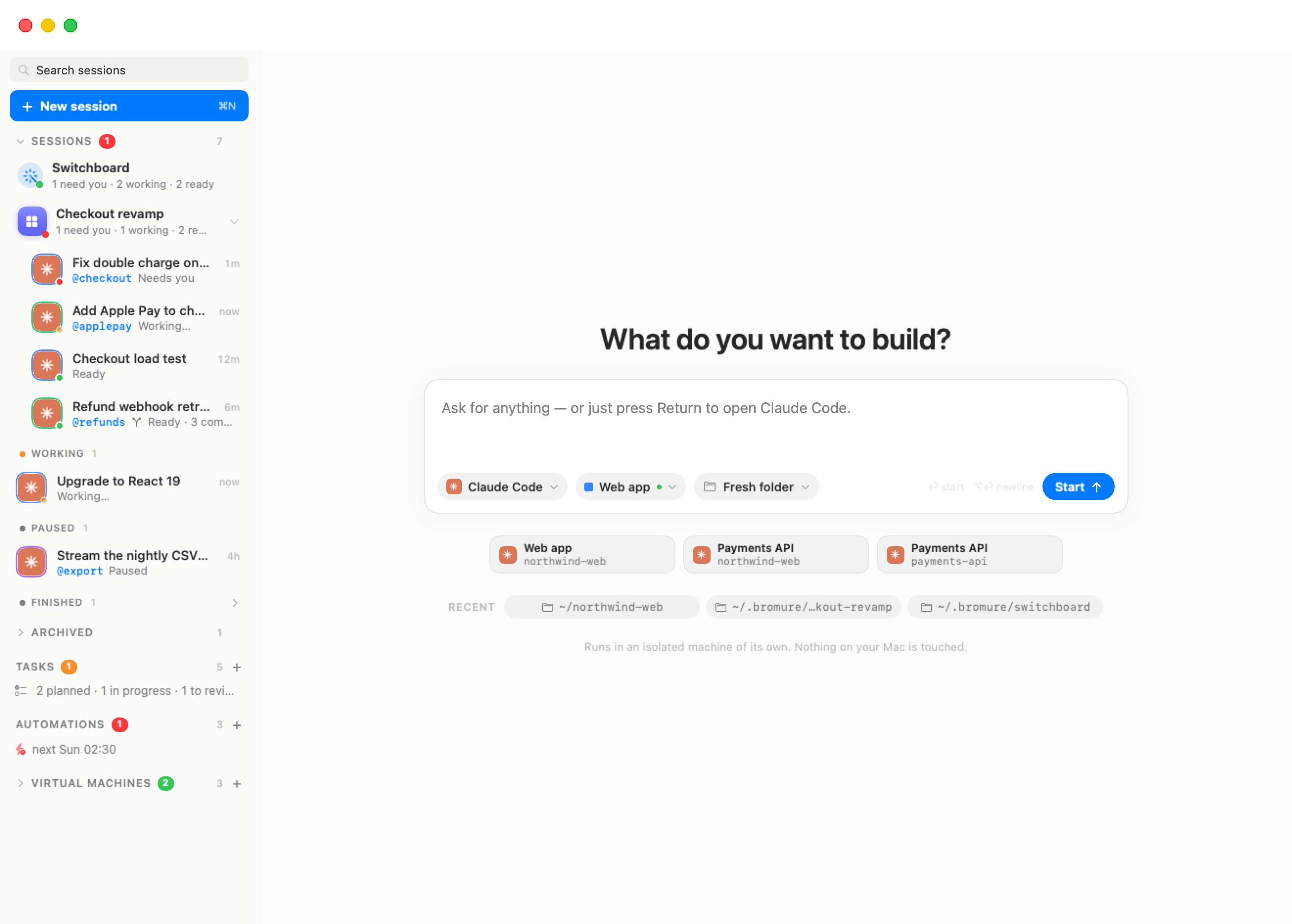
The opening message
The heading is a greeting picked at random each time ("What can I help you with?", "What are we building today?", …). Below it is the composer: "Ask for anything — or just press Return to open agent."
- Type what you want done, then press Return (or click Start, or press ⌘⏎). ⌥⏎ inserts a new line.
- Leave it empty and press Return to open the agent with nothing to do yet — you talk to it once it is up.
The first words of your message become the session's title until the agent gives it a better one. The message is also what a fresh folder is named after (below).
The three chips
Along the bottom of the composer, three chips show what the session will run with. Each is pre-filled from last time; click one to change it.
Agent
The agent that runs the session ("The agent that runs this session"): Claude Code, Codex, Grok Build, Kimi Code or Oh My Pi. Every agent is installed on every machine, so any of them can be picked anywhere. Under each name, the list says whether it is ready to go:
- Ready — the machine already has what the agent needs to reach its model (a sign-in or an API key, from Preferences › Models or the machine's own settings).
- Sign in when it starts — nothing is set up yet. Start anyway: the agent's sign-in appears in the chat as a card, and Bromure signs you in on the Mac. See The Chat.
- Pick a model provider when it starts (Oh My Pi) — the agent has no provider key yet; the chat will point you to the machine's settings.
The app remembers the agent you last used on each machine: switching the Machine chip switches the Agent chip to that machine's last agent.
Machine
The machine the session runs on. The chip shows the machine's colour and name, with a green dot when it is running. Its tooltip says "The machine it runs on — running" or "The machine it runs on — asleep, wakes up when you start": you can pick a machine that is off or suspended, and it boots when the session starts.
The list shows every machine with the agents it has set up, a green dot on the running ones, and a check on the current one. It ends with New machine…, which opens the settings editor for a new machine; once you save it, it comes back selected here. See Machines.
Where
Where the agent works ("Where it works: a fresh folder, one of yours, or a repository to check out"). The popover has three choices:
| Choice | What it does |
|---|---|
| Fresh folder | "A fresh folder of its own in the machine's home, named after your message." The folder is named from the first few words of your message (or the agent's name, if you wrote nothing) plus the date and time — for example ~/fix-login-redirect-260926-1412 — so two sessions never share one. |
| A folder | A folder inside the machine — "created if it doesn't exist yet." Type a path (~/my-project), click Choose… to browse the machine's folders, or pick one from the Recent menu. |
| A repository | A git URL (https://github.com/org/repo.git) and a folder to check it out into (proposed from the repository's name). "Checked out with the machine's git credentials or SSH key. If the folder already holds the repository, it's used as is." |
A folder that doesn't exist yet — a fresh one, or one you typed — is created and made a git repository, so the agent's work is versioned from the first edit. An existing folder is used as it is.
Choose… opens a folder browser on the machine, in the manner of an Open panel: the folder on show and its parents in a pop-up at the top, its subfolders below. Click a folder to select it, double-click to step into it, or right-click it for Open and Choose; Up one folder goes to the parent. Click Choose to take the selection, or Cancel. It works even while the machine is asleep: the folders are then read straight from the machine's home disk. If the machine's folders can't be read, it says so and you can type the path instead.
Click Done to close the popover. The chip then shows the choice: Fresh folder, the folder's path, or the repository's short name.
Note: With A repository, Start stays disabled until you enter a URL.
Recent starts
Below the composer, the screen offers shortcuts to pick up where you were:
- Recent start cards — the last few distinct combinations of agent, machine and folder you started (shown once there are at least two, up to three). One click sets all three chips; the card's tooltip spells it out, e.g. "Claude Code on Payments API, in ~/payments-api".
- RECENT folders — up to four folders earlier sessions used on the selected machine. Click one to work there again ("Work in this folder again"); click it a second time to go back to a fresh folder.
Attaching files
Drag files from Finder (or a picture from a browser or Preview) onto the composer — the box shows Drop to attach. Each file becomes a chip above the text, with a thumbnail for pictures and a badge to remove it. Any kind of file works, up to 512 MB each; a file that is too big or can't be read is refused with a beep.
When the session starts, the files are copied into the machine, under ~/.bromure/drops/, and their paths are added to the end of your opening message, so the agent can open them. A file that fails to copy is left out; the rest still go through.
Tip: Dropping a file right onto the text, rather than the box around it, first pastes its path into the text; the screen turns that path into a chip the same way.
Asking another session: @
Typing @ in the opening message opens a palette of "sessions you can ask": every other session that isn't archived and still has its folder, by its @nickname. A session without a nickname is listed with a proposed one, tagged new name; picking it gives the session that nickname on the spot. Use ↑↓ to move, ⇥ or Return to complete, Esc to dismiss.
Writing @name in your message lets the agent ask that session for help. How requests between sessions work is covered in Agents Working Together.
No machine yet
With no machine at all, the screen reads "Let's set up a machine first." and shows a card, Set up your first machine — "An isolated Linux machine with the agents and keys you choose. Sessions run inside it — nothing on your Mac is touched." — with a Create a machine button that opens the settings editor. Once the machine is saved, the screen switches to the normal composer.
While the session starts
The moment you press Start, the session appears at the top of the sidebar and its chat opens with your message. A line under it says what is happening:
| Line | Meaning |
|---|---|
| Waking up… | The machine is off or suspended and is starting. |
| Almost there… | The machine is booting. |
| Checking out the repository and starting agent… | The repository is being cloned. |
| Starting agent… | The machine is up; the agent is starting in its folder. |
The composer reads "agent is starting — you can talk to it in a moment…" and is disabled until the agent is up. From then on, the chat is live.
If a machine boots with a newer base image available, or has been flagged as compromised, you may be asked about it first — see Machines.
When it doesn't start
If the start fails, the session's status line in the sidebar reads Couldn't start and the chat shows the reason in an orange card:
| Message | What to do |
|---|---|
| "The workspace did not start in time" | The machine didn't finish booting. Check it under Virtual Machines, then send a message or click Resume to try again. |
| "The agent never showed up. The workspace may run an older in-VM agent — reboot it (Virtual Machines › ⋯ › Reboot) and try again." | The agent's terminal tab didn't appear within three minutes of the start. Reboot the machine, then try again. |
| "Couldn't clone repository — reason" | The repository couldn't be checked out — typically a wrong URL or missing git credentials on the machine (Credentials). |
| "Couldn't reach the workspace — is it running?" | The app lost contact with the machine. |
See Troubleshooting if a machine fails to start repeatedly.